Screenshots


App details
- Version
- 1.20
- Size
- 346.99 KB
- Updated
- September 25, 2007
- Requires
- Windows 2000
- Language
- English
- License
- Free
- Developer
- AmpSoft
- Category
- Windows OS
SoftPas in:
This product is also available in the following languages:
About Windows Elapsed Running Time
Download Windows Elapsed Running Time – Free, Secure Tool to Track PC Usage Time
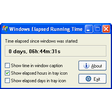
Ever wondered how long your computer has been running since the last reboot? Windows Elapsed Running Time is a lightweight, no-frills utility designed to help users track the uptime of their Windows system. Whether you're a power user, a parent monitoring screen time, or just someone who gets lost in the digital world, this small but effective tool displays the exact duration your PC has been active—down to the second. With support for Windows 9x, Me, 2000, and XP, it’s a reliable companion for older systems and a nostalgic favorite for long-time PC users. The app runs quietly in the system tray, offering real-time updates without consuming system resources. You can choose to display the timer alongside the system clock or in a standalone window, giving you full control over how and where it appears. The latest update fixes critical bugs, including the infamous negative time display after 25 days, ensuring accurate tracking. Perfect for those who want to stay mindful of their screen time or simply satisfy their curiosity about their PC’s uptime.
Why You Should Download Windows Elapsed Running Time
Tracking how long your computer has been running might seem like a niche need, but for many users, it’s surprisingly useful. Windows Elapsed Running Time stands out as a minimal yet powerful tool that does exactly one thing—track system uptime—and does it well. Unlike complex monitoring software, this app is designed for simplicity and reliability. It’s ideal for users who want to avoid digital burnout, manage screen time for kids, or simply keep an eye on system stability. Long-running systems can experience memory leaks or performance degradation, and knowing how long your PC has been up helps you plan regular reboots. The tool is especially valuable on older Windows systems like XP or 2000, where uptime monitoring wasn’t built into the OS. By displaying time in hours, days, or even seconds, it gives you granular insight into your machine’s activity. The app runs in the background with minimal impact on CPU or RAM, making it perfect for low-spec machines. Plus, with full compatibility with Windows XP themes, it blends seamlessly into your desktop environment. Whether you're a developer testing long-term processes, a gamer who runs extended sessions, or a parent setting screen time limits, this utility provides the clarity you need without overwhelming you with features.
Key Features That Make It Stand Out
- Real-time Uptime Tracking – Displays elapsed time since Windows was started, updated every second.
- Flexible Display Options – Choose to show the timer next to the system clock or in a standalone window.
- Multiple Time Formats – View time in seconds, hours, or even days for better readability.
- System Tray Integration – Runs quietly in the background, accessible with a single click.
- Theme Support – Fully compatible with Windows XP visual styles and themes.
- Bug-Free Performance – Fixed negative time display after 25 days in the latest version.
- Lightweight & Fast – Minimal resource usage, perfect for older or low-end systems.
What makes this tool truly special is its commitment to simplicity. While modern operating systems have evolved, many users still rely on legacy systems or prefer minimalist tools. Windows Elapsed Running Time doesn’t try to be everything to everyone—it focuses on one core function and excels at it. The interface is clean, intuitive, and unobtrusive. You can customize the display format to suit your preferences, whether you're a casual user who just wants to know "how long has my PC been on?" or a tech enthusiast tracking uptime for system diagnostics. The fact that it supports Windows 9x through XP means it’s accessible to a wide range of users, including those maintaining vintage PCs or running legacy software. It’s also a great educational tool for students learning about system processes and uptime concepts. With no ads, no telemetry, and no hidden tracking, this software respects your privacy and system integrity. For anyone seeking a secure, free, and dependable way to monitor PC uptime, this tool is a must-have addition to your software toolkit.
How to Install and Use Windows Elapsed Running Time
Installing Windows Elapsed Running Time is straightforward and requires no technical expertise. First, download the latest version from a trusted source. The app is available as a free download, so you can get started instantly. Once downloaded, locate the executable file (typically named ElapsedRunningTime.exe) and double-click it to launch the installer. The setup wizard will guide you through the process—just click "Next" and choose your preferred installation directory. The software does not require administrative privileges on most systems, making it safe and easy to use. After installation, the app will automatically start and appear in the system tray, usually near the clock in the bottom-right corner of your screen.
To customize the display, right-click the icon in the system tray and select your preferred option—either "Show Next to Clock" or "Show in Standalone Window." You can also adjust the time format (seconds, hours, or days) from the same menu. The tool updates in real time, so you’ll always see the current uptime without needing to refresh. For users who prefer a cleaner desktop, the standalone window can be resized or moved to any location. If you want to disable the app temporarily, simply minimize it or hide it from the system tray. To completely remove it, go to the Control Panel > Programs and Features, find Windows Elapsed Running Time, and uninstall it with a few clicks. The app leaves no residual files behind, ensuring a clean uninstallation. Regular updates are recommended to maintain accuracy and fix any potential bugs, especially on older systems where compatibility issues can arise over time.
Compatibility and System Requirements
Windows Elapsed Running Time is designed to work across a wide range of older Windows operating systems, making it a versatile choice for users on legacy hardware. It is fully compatible with Windows 9x, Windows Me, Windows 2000, and Windows XP, ensuring accessibility for both personal and professional environments using older machines. This broad compatibility is one of its biggest strengths—many modern tools overlook these platforms, leaving users without reliable uptime tracking options. The software requires minimal system resources: as little as 1 MB of RAM and a standard processor, making it suitable for low-end PCs, netbooks, or systems with limited storage.
While it doesn’t support newer operating systems like Windows 11 or 10, this isn’t a limitation for its target audience. The tool was built for a time when system monitoring was less automated, and users needed simple, reliable utilities. Its lightweight nature ensures it won’t slow down older machines, and it integrates smoothly with the native Windows interface. If you’re running a Windows XP system with a classic theme, you’ll appreciate the full visual theme support, which ensures the app matches your desktop aesthetic. For users who value privacy and security, the lack of internet connectivity and data collection is a major plus. No background processes, no telemetry—just pure functionality. Whether you're using it on a home PC, a school lab computer, or a retro gaming rig, Windows Elapsed Running Time delivers consistent performance across all supported platforms.
Pros and Cons: Is It Right for You?
Pros
- Lightweight and fast—uses minimal system resources.
- Free to download and use—no hidden costs.
- Perfect for tracking PC uptime on older Windows systems.
- Customizable display—choose between system tray or standalone window.
- Supports multiple time formats: seconds, hours, days.
- Full compatibility with Windows XP themes.
- Fixes critical bugs like negative time display after 25 days.
Cons
- Not compatible with Windows 10 or 11.
- Limited to older operating systems only.
- No mobile support (Android, iOS).
- Basic interface—no advanced analytics or reporting.
- Infrequent updates due to niche audience.
Frequently Asked Questions (FAQ)
Is Windows Elapsed Running Time free to download?
Yes, Windows Elapsed Running Time is completely free to download and use. There are no trial periods, subscription fees, or hidden charges. It’s a no-cost utility designed for users who want a simple uptime tracker without any strings attached.
Can I use it on Windows 10 or Windows 11?
Unfortunately, no. The software is only compatible with Windows 9x, Me, 2000, and XP. It does not support Windows 10 or 11 due to architectural differences and lack of legacy API support. However, it’s still an excellent choice for users on older systems.
Why does my timer show a negative value?
This was a known bug in older versions of the software, occurring after 25 days of continuous uptime. The latest release has fixed this issue, so updating to the newest version will resolve the problem and ensure accurate time tracking.
Does it use a lot of system resources?
No, it’s extremely lightweight. The app consumes less than 1 MB of RAM and uses negligible CPU power. It runs silently in the background without affecting your system’s performance, even on older or low-spec machines.
Can I hide the timer if I don’t want it visible?
Yes, you can minimize or hide the timer from the system tray. Right-click the icon and choose "Hide" or "Exit" to stop the display. The app will continue running in the background if needed, and you can re-enable it anytime.
Final Verdict: A Nostalgic Yet Practical Tool
Windows Elapsed Running Time may not be a feature-rich application, but it’s a gem for users who value simplicity, reliability, and privacy. In a world full of bloated software and invasive tracking, this tool stands out as a refreshing reminder of what good software should be—lightweight, functional, and secure. Whether you’re monitoring screen time for your kids, ensuring your system stays healthy with regular reboots, or just curious about how long your PC has been running, this app delivers exactly what it promises. It’s especially valuable for users of legacy Windows systems who lack built-in uptime monitoring tools. With its clean design, customizable display, and bug fixes in the latest version, it’s a trustworthy companion for long-time PC users. If you’re looking for a free, secure, and easy-to-use way to track your PC’s uptime, download Windows Elapsed Running Time today and gain a new level of awareness over your digital habits.
Download Now – Get the Free, Secure, and Lightweight Uptime Tracker for Windows 9x, Me, 2000, and XP.
Guides & Tutorials
How to install Windows Elapsed Running Time
- Click the Download button above.
- Once redirected, accept the terms and click Install.
- Wait for the Windows Elapsed Running Time download to finish on your device.
How to use Windows Elapsed Running Time
This software is primarily used for its core features described above. Open the app after installation to explore its capabilities.
User Reviews
No reviews yet. Be the first to share your experience.
You may also like
more
Llama 2
Free-to-use large language model As the new addition to Meta’s arsenal of langua...

NotebookLM
Revolutionizing the note-taking and idea-generation process NotebookLM is an exp...

Github co pilot
AI-inspired software development and coding platform GitHub Copilot is a browser...

Google Gemma
Google’s lightweight AI models Introducing Google Gemma , a family of cutting-ed...

AI Image Enlarger
A free app for Windows, by ai-image-larger. AI Image Enlarger is a free software...

DALL E
AI-driven text-to-image transformation engine DALL·E is a free graphic and desig...